You bought a smart plug. Then a light bulb. Then a thermostat. Now you have six apps on your phone, and none of them talk to each other. The living room light doesn’t turn off when the door locks. The thermostat ignores the motion sensor in the hallway.
This is the real problem a smart home manager solves. Not adding more gadgets — making the ones you already own work together without you having to open four different apps.
Here’s how to set one up without wasting money on hardware you don’t need.
1. What a Smart Home Manager Actually Does (And Doesn’t Do)
A smart home manager is a central controller. It takes commands — from a phone, a voice assistant, a sensor, or a schedule — and sends them to the right device. Think of it as the translator between your Zigbee door sensor and your Wi-Fi light bulb.
It does not replace your Wi-Fi router. It does not make every device instantly compatible. And it does not require you to throw away your existing setup.
Most people buy a hub first and figure out compatibility later. That’s backward. The right order is: list what you own → check what protocol each uses → pick a hub that speaks all those languages.
The three main wireless protocols in smart homes are Wi-Fi, Zigbee, and Z-Wave. Thread is newer and gaining ground, but most current devices still use the big three. A good manager handles at least two of them.
Here’s where it gets specific. The Samsung SmartThings Hub v2 ($99, discontinued but still widely available used) supports Wi-Fi, Zigbee, Z-Wave, and LAN. The Hubitat Elevation ($129) supports Zigbee and Z-Wave but not Wi-Fi — it relies on your router for that. The Home Assistant Yellow ($199) supports Zigbee and Thread out of the box, with Z-Wave available as an add-on.
If you own five Wi-Fi bulbs and one Zigbee sensor, you don’t need a Z-Wave hub. Match the manager to your devices, not the other way around.
Why People Get Stuck Here
They buy a hub with great reviews, plug it in, and discover their $15 Wi-Fi plug won’t pair because the hub only speaks Zigbee. Then they buy a second hub. Then a third. That’s how you end up with a drawer full of dongles.
Check your device specs before buying anything. Every smart device lists its protocol in the manual or on the box. Write them down. That list is your shopping list.
2. Choosing Between Cloud-Based and Local Control

This is the fork in the road that most setup guides skip. Your smart home manager can process commands either in the cloud (on a server somewhere) or locally (inside your home on the hub itself).
Cloud-based managers — like Amazon Alexa and Google Home — are easy to set up. You plug them in, connect to Wi-Fi, and start adding devices. But when your internet goes down, your voice commands stop working. Lights don’t turn on. Schedules don’t fire. The whole system goes dark.
Local managers — like Hubitat Elevation and Home Assistant (when configured properly) — keep running even if your ISP drops. The hub processes automations on its own processor. You lose remote access from your phone, but everything inside the house still works.
There’s a tradeoff. Local managers take longer to set up. You’ll spend an afternoon configuring rules through a web interface instead of tapping buttons in an app. But they’re faster — local command response times average 50-100 milliseconds versus 200-500 milliseconds for cloud-based systems.
For most people, I’d recommend starting with a hybrid approach. Use a cloud-based hub for the first month to learn what automations you actually want. Then migrate to a local system if you hit limitations.
The Apple HomeKit system sits somewhere in between. It processes automations locally on an Apple TV or HomePod, but still requires a cloud connection for remote access. It’s a good middle ground if you’re already in the Apple ecosystem.
3. Device Compatibility — The Real Reason Smart Homes Fail
Compatibility isn’t about the brand. It’s about the protocol and the certification. A Philips Hue bulb uses Zigbee. So does a IKEA TRÅDFRI bulb. They should work together, right? Sometimes yes, sometimes no.
Philips Hue uses a proprietary extension of Zigbee called Zigbee Light Link (ZLL). IKEA TRÅDFRI uses the same. In theory, they pair. In practice, the Hue Bridge won’t control IKEA bulbs directly — you need a third-party hub like Home Assistant or Hubitat to bridge them.
Here’s a quick reference for what works with what:
| Device Type | Protocol | Works With SmartThings | Works With Hubitat | Works With Home Assistant |
|---|---|---|---|---|
| Philips Hue Bulb | Zigbee (ZLL) | Yes (via Hue Bridge) | Yes (direct) | Yes (direct) |
| IKEA TRÅDFRI Bulb | Zigbee (ZLL) | Yes (direct) | Yes (direct) | Yes (direct) |
| Lutron Caseta Dimmer | Clear Connect (proprietary) | No | No | Yes (via Lutron Hub) |
| August Smart Lock | Wi-Fi + Bluetooth | Yes (via cloud) | Yes (via cloud) | Yes (via cloud) |
| Ecobee Thermostat | Wi-Fi | Yes (via cloud) | Yes (via cloud) | Yes (via cloud) |
| Z-Wave Door Sensor | Z-Wave | Yes (direct) | Yes (direct) | Yes (with Z-Wave stick) |
Notice the pattern. Devices that use the same protocol as your hub work directly. Devices that use a proprietary protocol need their own bridge. Devices that only speak Wi-Fi work through cloud integrations.
The mistake people make is buying a hub that matches their brand loyalty instead of their device list. A Samsung SmartThings hub won’t talk to a Lutron Caseta dimmer without the Lutron bridge plugged into it. That’s two boxes, not one.
4. Setting Up Your First Automation — Do This Before Adding 50 Devices

Start with one automation. Just one. Get it working perfectly before you add anything else.
The easiest first automation is a motion-activated light. Here’s the exact setup using a Hubitat Elevation hub and a Aeotec MultiSensor 6 ($45) paired with a GE Enbrighten Z-Wave Plug ($25):
- Plug in the Hubitat and connect it to your router via Ethernet (Wi-Fi setup is less reliable).
- In the Hubitat app, go to Devices → Add Device → Z-Wave.
- Put the Aeotec sensor in pairing mode (press the button once). The hub finds it in about 10 seconds.
- Put the GE plug in pairing mode (press the button three times). Same process.
- Go to Apps → Add Built-In App → Motion Lighting.
- Select the sensor as the trigger. Select the plug as the action.
- Set the timeout to 2 minutes (the light turns off 2 minutes after no motion).
- Test it. Walk past the sensor. The light turns on. Wait 2 minutes. It turns off.
Total time: about 15 minutes. Total cost for the automation: $70 plus the hub.
This one automation teaches you the core concepts — triggers, actions, conditions — that apply to every other automation you’ll build. Schedules work the same way. Door sensors work the same way. Temperature triggers work the same way.
If you can’t get this simple automation working reliably, don’t add more devices. Something is wrong with your hub placement, your network, or your device compatibility. Fix it now before you have 20 devices to troubleshoot.
5. Network Infrastructure — Why Your Hub Keeps Disconnecting
Most smart home problems aren’t device problems. They’re network problems.
Your hub needs a stable connection to your router. If that connection drops for 10 seconds, automations fail. Schedules miss their triggers. Voice commands time out.
Here are the three most common network failures I see:
Wi-Fi congestion. A typical home has 15-30 devices on Wi-Fi. Each one competes for airtime. Add a smart home hub that’s constantly polling sensors, and you get packet loss. Fix: hardwire your hub with Ethernet. The Hubitat Elevation and Home Assistant Yellow both have Ethernet ports. Use them.
Router placement. Put your router in a corner closet, and the Zigbee signal from your hub won’t reach the far end of the house. Zigbee and Z-Wave are mesh networks — each powered device repeats the signal. But the hub still needs a clear path to the nearest device. Move your hub to a central location, ideally on the main floor.
IP address conflicts. If your router assigns a new IP address to your hub every time it reboots, automations that rely on local IP communication break. Fix: set a static IP for your hub in your router’s DHCP settings. On most routers, this is under LAN Settings → Address Reservation.
One more thing: don’t use a Wi-Fi extender for your hub. Extenders add latency and packet loss. If you need better coverage, use a mesh Wi-Fi system like Eero Pro 6 ($229 for three-pack) or TP-Link Deco X60 ($199 for three-pack), and hardwire your hub into one of the satellite nodes.
6. Advanced Automations — When Simple Rules Aren’t Enough
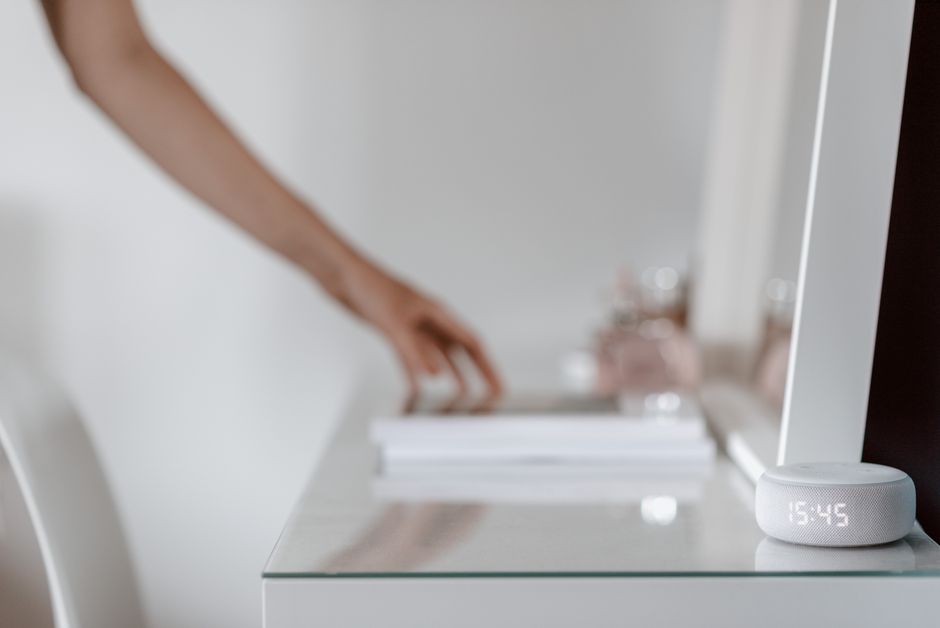
Once you’ve got basic motion lights working, you’ll want more. Here are three automations that actually make a difference in daily life, with the exact logic you need to program.
Goodnight scene. One voice command or button press turns off all lights, locks all doors, sets the thermostat to 68°F (20°C), and arms the motion sensors. In Hubitat, this is a Simple Automation rule with multiple actions. In Home Assistant, it’s a script that calls multiple services. The key is to add a 2-second delay between each action — some devices can’t handle simultaneous commands.
Arrival detection without geofencing. Geofencing (using your phone’s location to trigger automations) is unreliable. Phones lose GPS indoors. Batteries die. Instead, use a door sensor on the front door combined with a motion sensor in the entryway. If the door opens and motion is detected within 30 seconds, someone just arrived. Trigger the “welcome home” scene. This works every time, no phone required.
Temperature-based fan control. If you have a smart thermostat and a smart plug with a fan, you can create a cooling automation that doesn’t touch the AC. In Home Assistant: if temperature > 78°F (26°C) AND time is between 6 PM and 10 PM AND nobody is in the bedroom, turn on the fan. When temperature drops below 74°F (23°C), turn it off. This saved me about $15/month on electricity during summer.
These automations require more setup time — maybe 30 minutes each — but they’re the difference between a smart home that’s a gimmick and one that actually saves you time and money.
7. The One Manager Setup I’d Recommend Right Now
If you’re starting from scratch and you want something that works out of the box without a computer science degree, get the Hubitat Elevation ($129). It processes everything locally. It supports Zigbee and Z-Wave directly. It has a decent app for basic setup. And it doesn’t require a subscription.
If you already own a mix of Wi-Fi devices and Zigbee sensors, and you don’t mind spending a weekend configuring, get Home Assistant running on a Raspberry Pi 4 ($55) with a Sonoff Zigbee 3.0 USB Dongle Plus ($20). Total cost: $75. You’ll get the most flexible system available, with integrations for over 1,000 brands.
If you’re deep in the Apple ecosystem and you want something that just works, buy an Apple TV 4K ($129) and use it as your HomeKit hub. Add a Philips Hue Bridge ($50) for lighting and a Lutron Caseta Smart Bridge ($80) for switches. Total cost: about $260. You’ll have limited automation options but rock-solid reliability.
The worst choice you can make is buying a cheap no-name hub from Amazon for $30. Those hubs have terrible software, no local processing, and zero support. You’ll spend more time troubleshooting than you will enjoying your smart home.
Pick your platform. Start with one automation. Build from there.